Table of Contents
View Magento 2 Whatsapp Notification Extension Detail Page for Features and Demo
Documentation for Whatsapp Notifications
Preference
- Mageants Whatsapp Notifications,sends WhatsApp notifications to customers,updating them about their store activities on order placement and shipment. Customers get notification in WhatsApp number, when they place order and when shipment ready.
Installation
There are two ways of installing extension in magento2.
- Using COMMAND LINE.
- Manually Install extension.
Option 1: Magento 2 install extension using COMMAND LINE (Recommended)
Follow below steps to install extension from the command line.
Step 1: Download the extension and unzip it.
Step 2: Upload it to code directory in your magento installation’s app directory. If code directory does not exists then create.
Step 3: Run “composer require twilio/sdk” from CLI to use Twilio.
Step 4: Disable the cache under System → Cache Management.
Step 5: Enter the following at the command line:
           Php bin/magento setup:upgrade
           Php bin/magento setup:static-content:deploy
Step 6: Once you complete above steps log out and log in back to the admin panel and switch to Stores → Configuration → Mageants → WhatsApp Notification, the module will be displayed in the admin panel.
Option 2: Magento 2 install extension manually
Step 1: Download the extension and unzip it.
Step 2: Upload it to code directory in your magento installation’s app directory If code directory does not exists then create.
Step 3: Disable the cache under System → Cache Management Edit app/etc/config.php file and add one line code: ‘Mageants_Whatsappnotifications’ ⇒ 1
Step 4: Disable the cache under System → Cache Management
Step 5: Once you complete above steps log out and log in back to the admin panel and switch to Stores → Configuration → Mageants → WhatsApp Notification, the module will be displayed in the admin panel.
Backend Example
After Installation of Extension login to magento admin panel to set configuration of the extension.
Extension Configuration
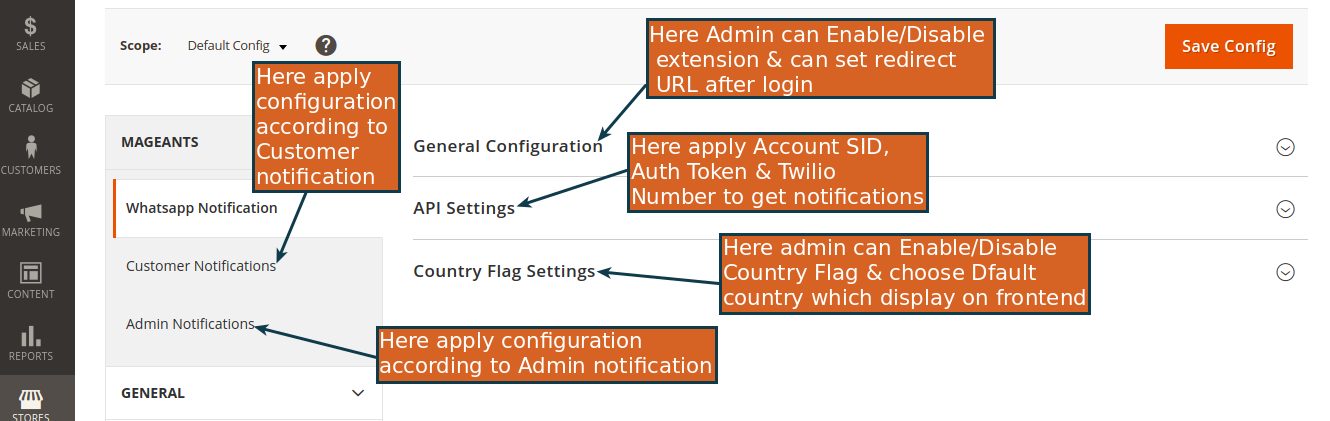
As per below screen shot you can set all the settings here.
You can find configuration at Stores → Configuration → MAGEANTS → WhatsApp Notification.
Twilio Registration
To use Twilio to send WhatsApp notifications, you need to register with Twilio to get Account SID, Auth Token and Twilio Phone Number.
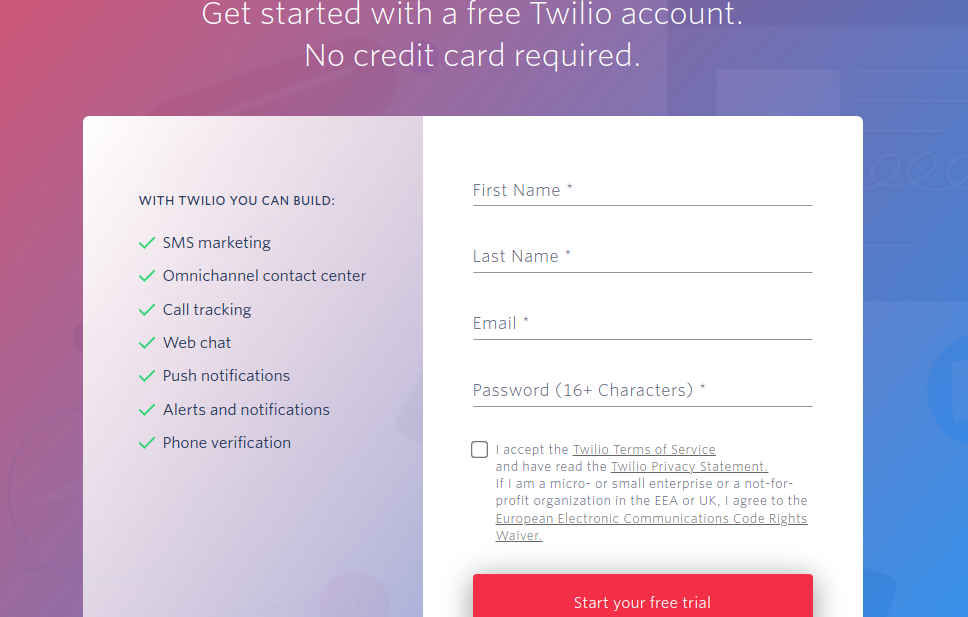
- First of all, Sign Up for the Twilio account. Add the details and click to start your free trial.
- After the Email verification, enter your mobile number and click to “Verify”.
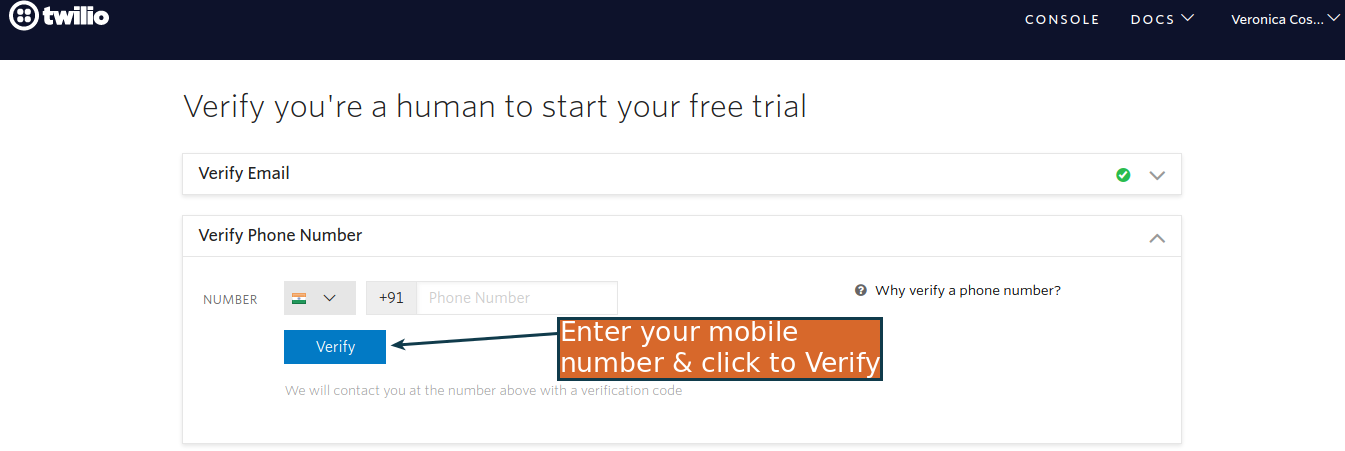
- Once you click “Verify”, you will get an OTP on the added mobile number. Enter the OTP and verify the mobile number. Now move to Settings→General where you can see API details both for live and testing. Copy the Account SID and Auth Token to use them in Magento 2 backend configuration for Twilio account.
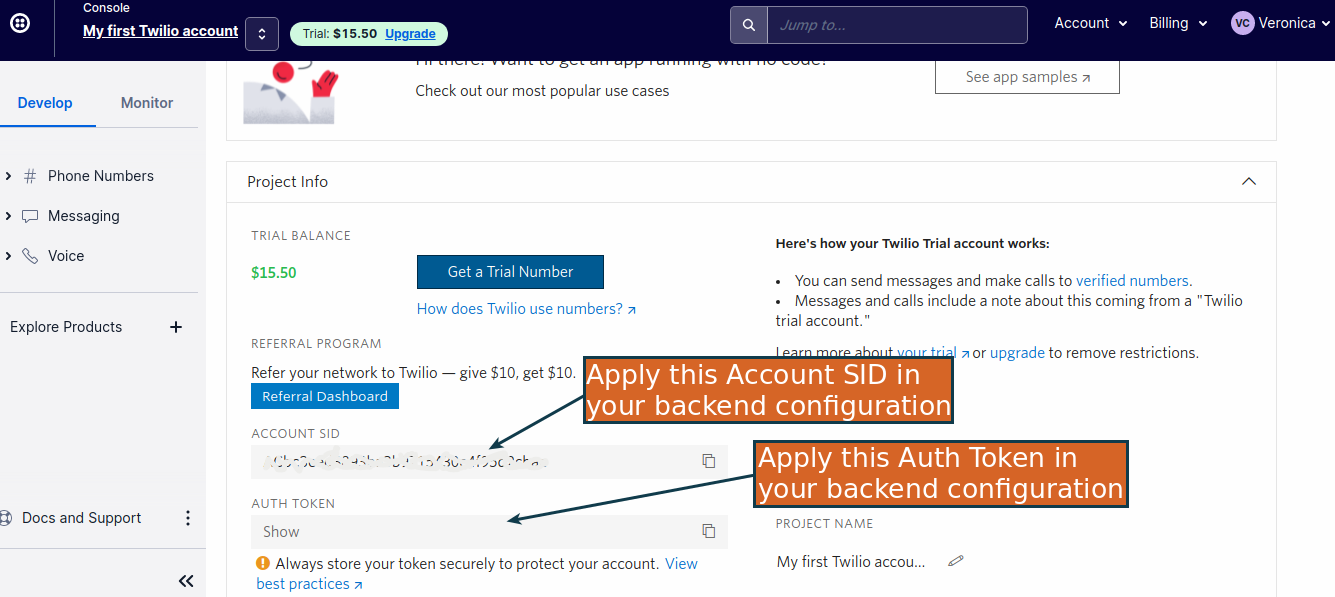
- From here, you can get Twilio phone number to use for sending the SMSs. Click on the “Get a Trial Number” button.
- You will get a number to choose. Click “Choose This Number”.
General Configuration :
WhatsApp Notification Enable : Here you can enable and disable module from back end.
Redirect URL After login : Here you can set url to redirect after login for customers.
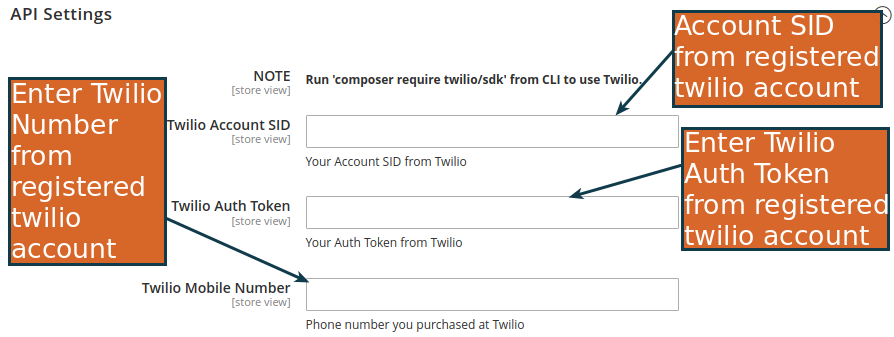
Api Settings :
Twilio Account SID : Here you Enter Twilio SID received while registration with Twilio.
Twilio Auth Token : Here Enter Twilio Auth token received while registration with Twilio.
Twilio Mobile Number : Here Enter Twilio number received while registration with Twilio.
Country Flag Settings :
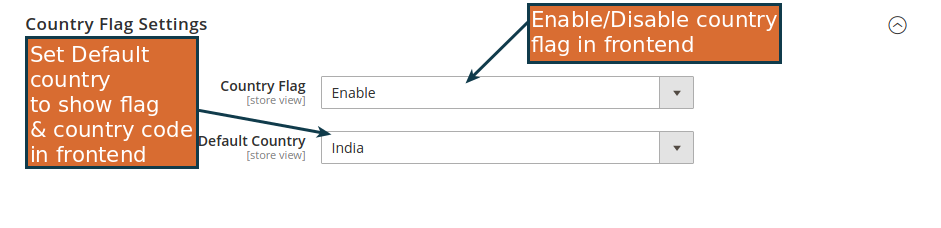
Country Flag : Here Enable country flag with country code on checkout shipping Address forms.
Default Country : Here set default country to show the default selected flag on checkout shipping Address forms.
Customer Registration Notification Settings :
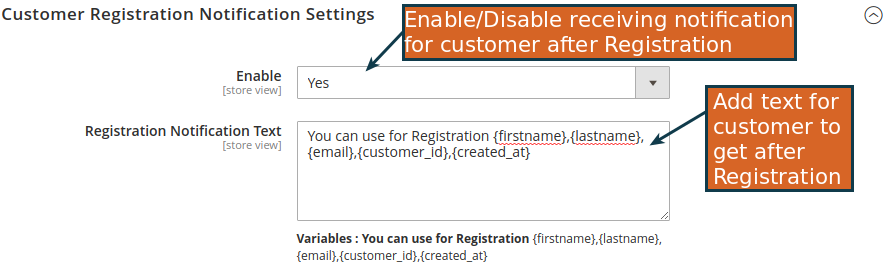
Enable : Here enable Registration WhatsApp notifications to customers.
Registration Notification Text : Here enter the order placementWhatsApp notification text to send to customers.
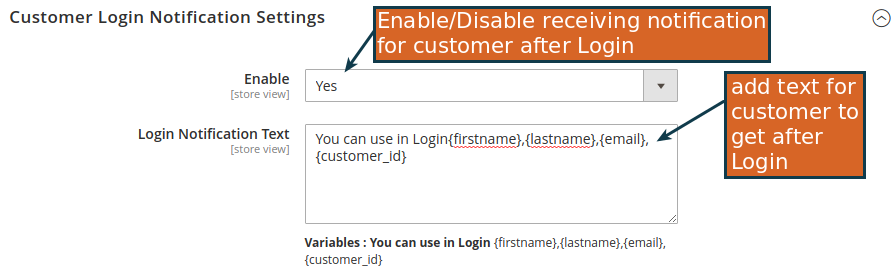
Login Notification Settings :
Enable : Here enable Login WhatsApp notifications to customers.
Login notification Text : Here enter the Login WhatsApp notification text to send to customers.
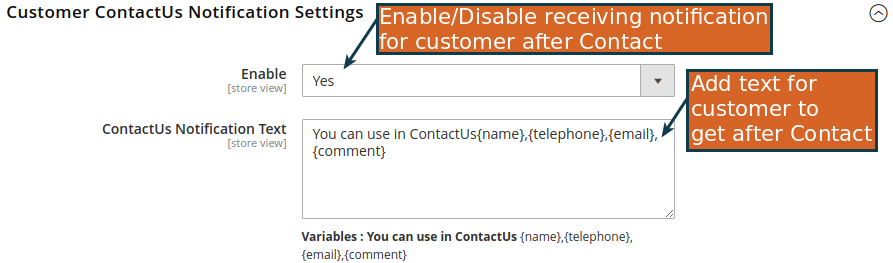
Customer ContactUs Notification Settings :
Enable : Here enable Registration WhatsApp notifications to customers.
ContactUs Notification Text : Here enter the contactus WhatsApp notification text to send to customers.
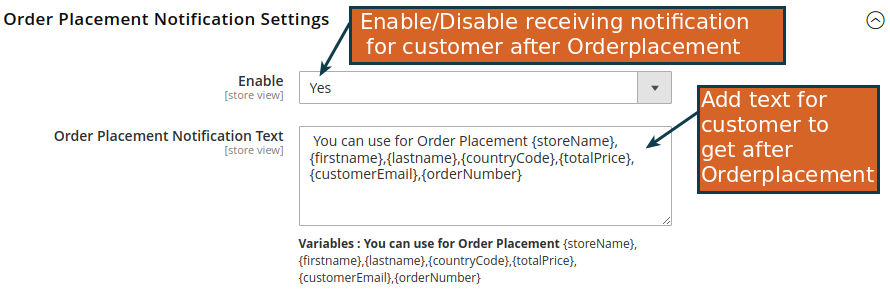
Order Placement Notification Settings :
Enable : Here enable Registration WhatsApp notifications to customers.
Order Placement Notification Text : Here enter the order placement WhatsApp notification text to send to customers.
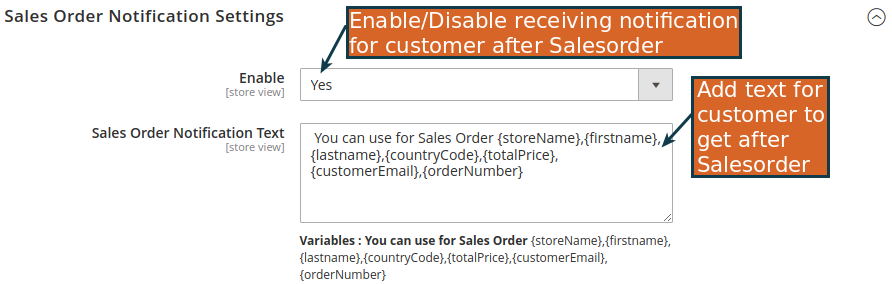
Sales Order Notification Settings :
Enable : Here enable Sales Order WhatsApp notifications to customers.
Sales Order Notification Text : Here enter the Sales Order WhatsApp notification text to send to customers.
Shipment Notification Settings :
Enable : Here enable Shipment WhatsApp notifications to customers.
Shipment Notification Text : Here enter the Shipment WhatsApp notification text to send to customers.
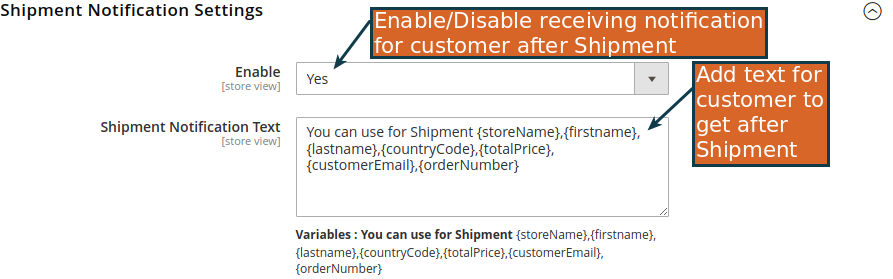
Invoice Notification Settings:
Enable : Here enable Invoice WhatsApp notifications to customers.
Invoice Notification Text : Here enter the Invoice WhatsApp notification text to send to customers.
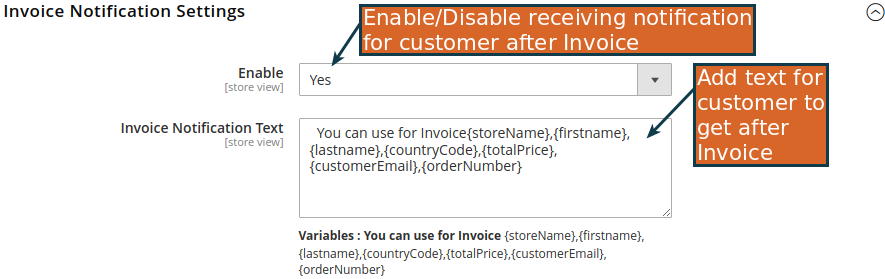
Customer Order Cancel Notification Settings:
Enable : Here enable Order Cancel WhatsApp notifications to customers.
Order Cancel Notification Text : Here enter the order cancel WhatsApp notification text to send to customers.
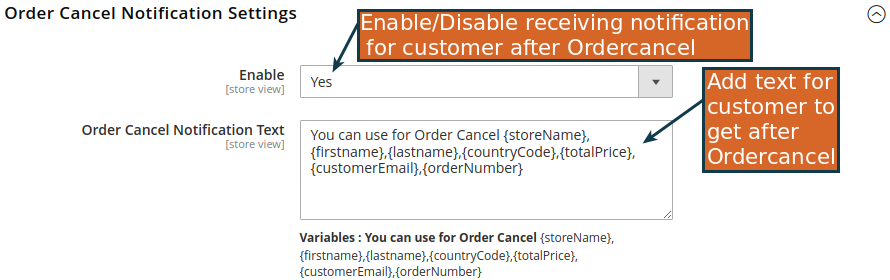
Customer Credit Memo Notification Settings:
Enable : Here enable CreditMemo WhatsApp notifications to customers.
Credit Memo Notification Text : Here enter the order placement WhatsApp notification text to send to customers.
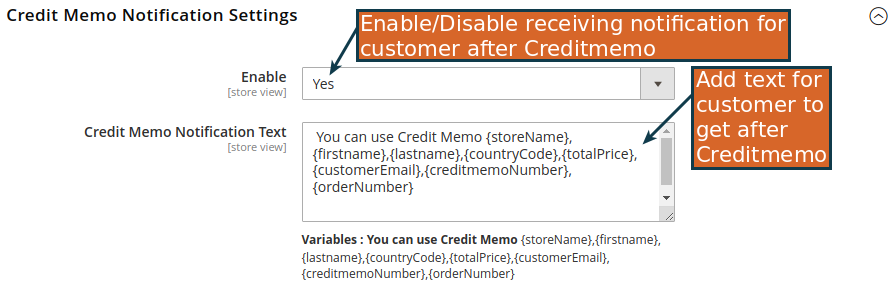
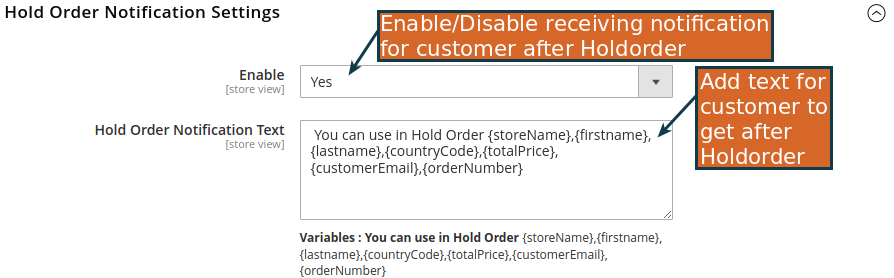
Hold Order Notification Settings :
Enable : Here enable order placement WhatsApp notification to customers.
Place Order Notification Text : Here enter the order placement WhatsApp notification text to send to customers.
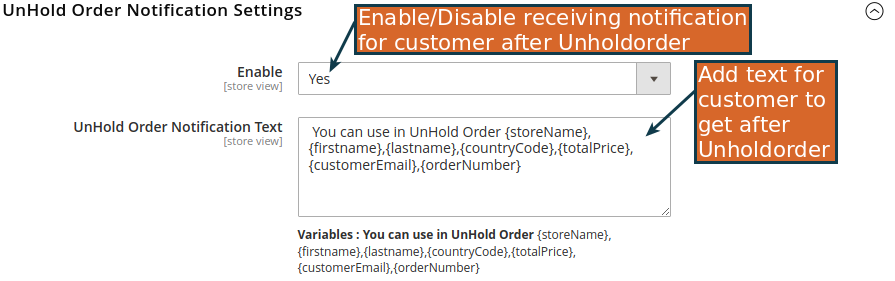
Unhold Order Notification Settings :
Enable : Here enable Unhold order WhatsApp notification to customers.
Unhold Order Notification Text : Here enter the Unhold order WhatsApp notification text to send to customers.
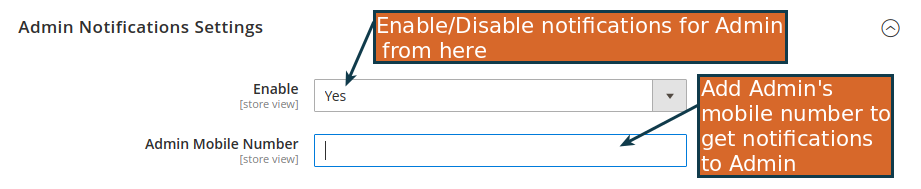
Admin Notifications Settings :
Enable : Here enable/disable WhatsApp notifications for Admin.
Admin Mobile Number : Here enter the Admin’s WhatsApp Number to get notifications to Admin.
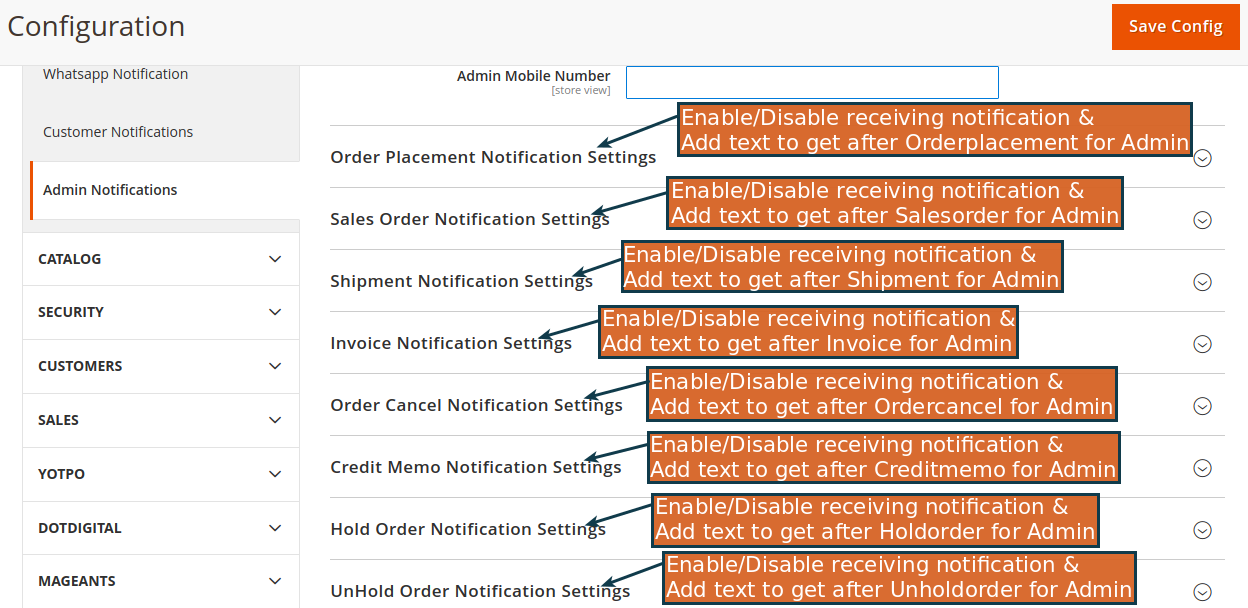
Customer Order Placement Notification Settings :
Enable : Here enable Registration WhatsApp notifications to customers.
Order Placement Notification Text : Here enter the order placement WhatsApp notification text to send to customers.
Customer Sales Order Notification Settings :
Enable : Here enable Sales Order WhatsApp notifications to customers.
Sales Order Notification Text : Here enter the Sales Order WhatsApp notification text to send to customers.
Customer Shipment Notification Settings :
Enable : Here enable Shipment WhatsApp notifications to customers.
Shipment Notification Text : Here enter the Shipment WhatsApp notification text to send to customers.
Customer Invoice Notification Settings :
Enable : Here enable Invoice WhatsApp notifications to customers.
Invoice Notification Text : Here enter the Invoice WhatsApp notification text to send to customers.
Customer Order Cancel Notification Settings :
Enable : Here enable Order Cancel WhatsApp notifications to customers.
Order Cancel Notification Text : Here enter the order cancel WhatsApp notification text to send to customers.
Customer Credit Memo Notification Settings :
Enable : Here enable CreditMemo WhatsApp notifications to customers.
Credit Memo Notification Text : Here enter the order placement WhatsApp notification text to send to customers.
Hold Order Notification Settings :
Enable : Here enable order placement WhatsApp notification to customers.
Hold Notification Text : Here enter the order placement WhatsApp notification text to send to customers.
UnHold Order Notification Settings :
Enable : Here enable order placement WhatsApp notification to customers.
UnHold Order Notification Text : Here enter the hold order WhatsApp notification text to send to customers.
Frontend Example
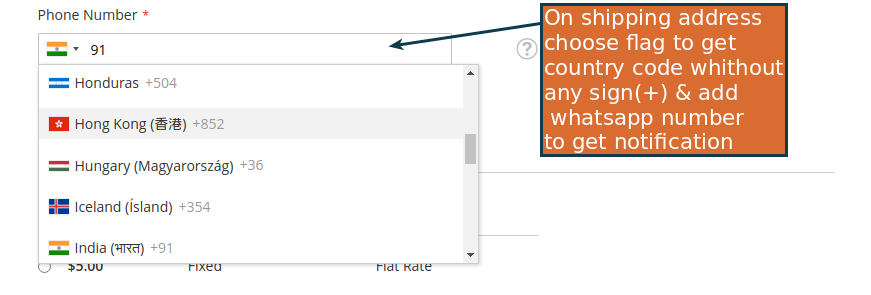
On Shipping Address, Customers can choose country flag & country code to input WhatsApp number without any sign(+) for get notification as per below screenshot.
On Place Order, Customers can check/uncheck for whatsapp notification as per below screenshot.

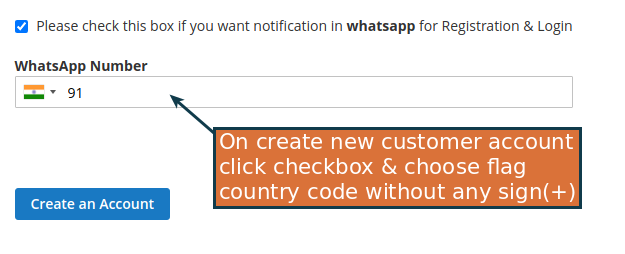
On Create New Customers Account, Customers can choose country flag & country code to input WhatsApp number without any sign(+) for get notification on registration & login as per below screenshot. Customers can choose by click or unclick checkbox for notification.
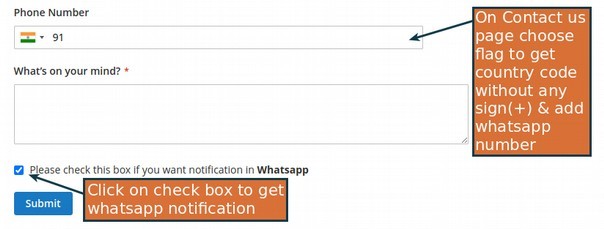
On Contact, Customers can choose country flag & country code to input WhatsApp number without any sign(+) for get notification as per below screenshot.